Overview
Stardeck projects are built around Git repositories hosted on GitHub. Every Stardeck project is connected to a GitHub repository, and all development happens through Git branches. This Git-first approach gives you powerful version control, collaboration features, and the ability to work with multiple versions of your project simultaneously. When you create a Stardeck project, you’re essentially creating a deployment pipeline that connects to specific branches in your GitHub repository. You can then choose which branches to publish and deploy live.Why Branches Matter in Stardeck
- Isolated Development - Each branch represents a separate environment for development and testing
- Manual Publishing - You control which branches to publish and deploy live
- Collaboration - Team members can work on different features simultaneously
- Safe Experimentation - Test new features without affecting your main deployment
- Version Control - Full Git history and the ability to roll back changes
Key Concepts
GitHub Integration
All Stardeck projects are connected to GitHub repositories. Stardeck:- Connects to your GitHub branches for development
- Provides tools to manage which branches to track
- Allows you to manually publish branches when ready
- Integrates with GitHub’s merge and pull request workflows
Default Branch
Every project has a default branch (usuallymain or master) that serves as:
- The primary deployment for your project
- The main production version of your application
- The target for most merge operations
- A protected branch that cannot be accidentally deleted
Branch Tracking
Not all GitHub branches are available in Stardeck by default. You control which branches Stardeck should:- Track - Make available for development and publishing
- Manage - Include in your Stardeck dashboard and workflows
- Publish - When you’re ready to deploy them live
Getting Started with Branches
Viewing Your Branches
- Navigate to your project in the Stardeck dashboard
- Click the branch selector in the sidebar or top navigation
- View all tracked branches with their current status and deployment URLs
- Branch name and latest commit information
- Publishing status (published, unpublished)
- Direct link to live deployment (if published)
- Settings and management options
Creating New Branches
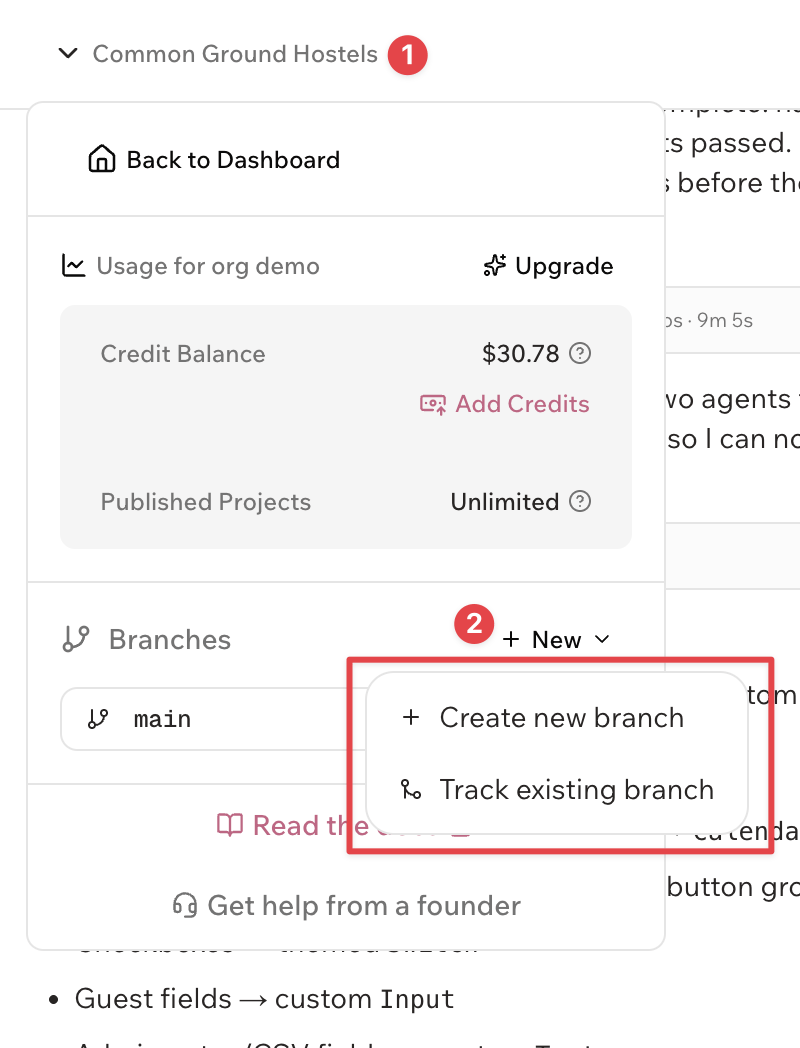
You can create new branches directly from Stardeck:- Open the branch selector in your project
- Click “New” → “Create new branch”
- Enter a branch name following your team’s conventions
- Choose a base branch (defaults to current branch)
- Click “Create” - Stardeck will create the branch on GitHub and start tracking it
New branches are created on GitHub and automatically tracked in Stardeck. You can immediately start pushing commits to work on features. When ready, you can publish the branch through the Deployment settings.
Tracking Existing GitHub Branches
If you have existing branches on GitHub that aren’t being tracked:- Open the branch selector
- Click “New” → “Track existing branch”
- Search and select the GitHub branch you want to track
- Click the branch name to start tracking it in Stardeck
Branch Management
Branch Settings
Each branch has its own settings accessible through the gear icon: Branch Information:- Branch name and latest commit SHA
- Whether it’s the default branch
- Connection status with GitHub
- View on GitHub - Opens the branch on GitHub in a new tab
- Stop Tracking - Removes the branch from Stardeck (GitHub branch remains)
Switching Between Branches
- Click the branch selector in your project
- Select any tracked branch to switch to it
- Work with that branch’s deployment and development environment
- Development environment and settings
- Publishing status and deployment options
- Build history and logs (when published)
Branch Status Indicators
- 🟢 Published - Branch is published and accessible via live URL
- 🟡 Building - Branch is being built for publication
- 🔴 Failed - Publication failed (check logs for details)
- ⚫ Unpublished - Branch is tracked but not published
Publishing Branches
To make a branch accessible via a live URL, you need to publish it:- Switch to the branch you want to publish
- Go to Project Settings → Deployment tab
- Click “Publish” to deploy the branch live
- Access your published branch at the generated URL
Only published branches have live, accessible URLs. Tracking a branch makes it available for development but doesn’t automatically deploy it.
Merging Branches
Stardeck provides powerful tools for merging branches while maintaining your Git history:Checking Merge Status
Before merging, Stardeck automatically checks:- Merge conflicts - Whether branches can be merged cleanly
- Branch status - How many commits ahead/behind
- Commit preview - Exact changes that will be merged
Viewing Commits to be Merged
When a branch is ready to merge, you’ll see:- Total commit count - Number of commits to be merged
- Commit details - Message, author, date, and SHA for each commit
- Change summary - What will be included in the merge
Performing Merges
- Open branch settings (gear icon next to any branch)
- Select your target branch (usually the default branch)
- Review the merge status and commit list
- Click “Rebase & Merge” when ready
Stardeck uses rebase merging to maintain a clean, linear Git history. This preserves all individual commits while avoiding merge commit clutter.
Merge Conflict Resolution
If conflicts exist:- Stardeck will clearly indicate which files have conflicts
- You’ll need to resolve conflicts on GitHub or locally
- Push the resolved changes before attempting to merge again
Advanced Features
GitHub Integration
View on GitHub:- Click the “View on GitHub” button in branch settings
- Opens the specific branch on GitHub for code review
- Access GitHub’s full collaboration tools
- Stardeck stays in sync with your GitHub repository
- New commits trigger automatic deployments
- Branch deletions on GitHub are reflected in Stardeck
Branch Protection
Default Branch Safety:- Cannot accidentally stop tracking the default branch
- Protected from deletion through Stardeck interface
- Maintains your primary deployment stability
- All destructive actions require confirmation
- Clear warnings about what will happen
- Safe guardrails prevent accidental data loss
Stopping Branch Tracking
When you no longer need a branch in Stardeck:- Open branch settings for the branch you want to stop tracking
- Click “Stop Tracking” (only available for non-default branches)
- Confirm the action in the dialog
Best Practices
Branch Naming
- Use descriptive names:
feature/user-authentication,fix/login-bug - Follow your team’s conventions consistently
- Keep names short but meaningful
When to Create Branches
- New features - Each feature gets its own branch
- Bug fixes - Isolate fixes from ongoing development
- Experiments - Test ideas without affecting main code
- Collaboration - Multiple developers can work simultaneously
Merge Strategy
- Regular merging - Don’t let branches get too far behind
- Small commits - Easier to review and merge
- Test before merging - Use branch deployments to verify changes
- Clean history - Rebase merging keeps Git history readable
Team Collaboration
- Use GitHub pull requests for code review before merging
- Communicate about which branches are active
- Document branch purposes and current status
- Clean up old branches regularly
Ready to start working with branches? Create your first feature branch and experience the power of Git-based development with Stardeck.